Quick Start (5 Min)
Get up and running with Warpai in under 5 minutes. Learn how to launch a coordinated CLI agent, observe automated state detection, and explore the integrated developer workbench.
Step 1: Meet the Three-Panel Workspace
When you launch Warpai, you will see a clean, three-column desktop workbench:
┌──────────────────┬──────────────────────────────────────────┬──────────────────┐
│  AGENT PANEL     │            GPU TERMINAL                  │  PROJECT PANEL   │
│                  │                                          │                  │
│ • Mode Switch    │ • GPU-accelerated block output           │ • File Explorer  │
│ • Coordinator    │ • Command autocompletion & history       │ • Code Editor    │
│ • Agent Sessions │ • Vertical tab strip                     │   (Vim mode)     │
│ • Active Tasks   │ • Screen lifecycle detection             │ • Live Markdown  │
│ • Quota Footer   │                                          │ • Git Review     │
└──────────────────┴──────────────────────────────────────────┴──────────────────┘
- Left Panel (Agent Coordination): Manage multi-agent collaboration, switch between Project Mode (omnidirectional messaging for non-coding teams) and Worktree Mode (parallel feature coding for Git repos), assign tasks, inspect peer reviews, and monitor quota limits.
- Center Stage (GPU Terminal): A modern, GPU-rendered command line powered by
wgpu. Features block-based command execution, autocompletion, vertical tabs, and split panes. - Right Panel (Project Workbench): In-terminal file tree, lightweight code editor with Vim bindings, Markdown document previewer, and Git Code Review.
Step 2: Enable Agent Communication
Warpai bridges natively with the command-line agents you already have installed:
- Open Settings (
Cmd + ,on macOS,Ctrl + ,on Windows). - Navigate to Features > Agent communication.
- Toggle the Agent communication switch ON.
- Warpai scans your system
PATHand presents a checklist of recognized CLI agents (e.g.,Claude Code,Codex,Gemini,Cursor,Qoder,Trae,Antigravity, etc.). - Check the boxes for the agents installed on your machine.
Checking an agent registers Warpai's local bridge. It never modifies your global shell profile (~/.zshrc), PATH, or third-party agent configuration files.
Step 3: Run Your First Coordinated Agent
- Click into the center terminal pane.
- Run your preferred CLI agent command directly:
# Launch Claude Code claude # Or launch Codex codex # Or launch Google Antigravity agy - Watch the Left Panel: Warpai automatically recognizes the process launch. A participant row appears in the collaboration panel with the agent’s native icon, process identifier, and live state.
Step 4: Automated Screen Detection & Task Queuing
Warpai’s built-in VT100 screen observer parses the agent’s real-time state:
Working: The agent is generating code, running tool calls, or executing tests.Idle: The agent finished its turn and is waiting at the prompt for the next instruction.WaitingApproval: The agent encountered a sensitive tool call and is paused waiting for your explicit approval.
Try Autonomous Task Queuing:
- When your agent is busy (
Working), queued messages and tasks sit safely in its inbox. - The moment the agent returns to
Idle, Warpai’s Guarded PTY Delivery automatically inputs the pending task into the terminal prompt. - Tasks can be dispatched dynamically at any time to multiple agents; newly assigned tasks automatically enter the dynamic supervision list, and actively exit the list once resolved.
- No manual copy-pasting or constant window-switching required!
If you have typed an unsubmitted draft into the prompt, or if the agent is waiting for permission (WaitingApproval), Warpai pauses automated delivery to protect your input and terminal safety.
Step 5: Monitor API Quotas & Token Usage
Never run unexpectedly into a rate limit in the middle of a complex multi-step refactor:
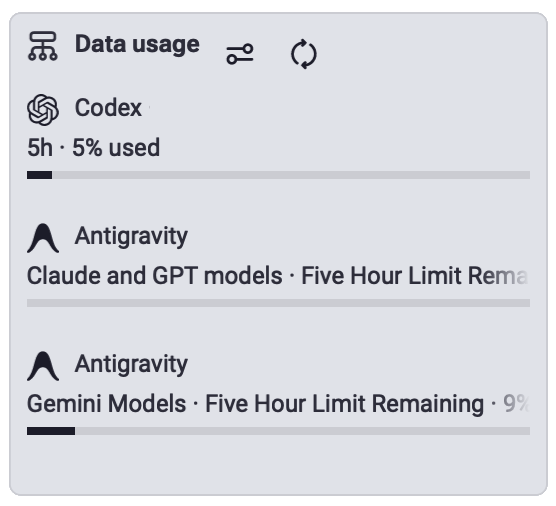
- Look at the Data Usage footer at the bottom of the left collaboration panel.
- It displays live quota consumption bars, remaining hourly/weekly reset windows, and balance information for your connected providers.